
Ticketing 2.0 Printing a Ticket

If needed; for audits etc., tickets can be printed.
1. Go to the ticket you would like to print
2. Click the 3 lines icon next to the ‘Update’ button
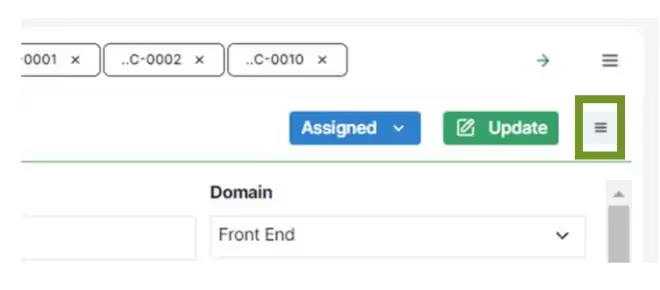
3. Click Print Ticket

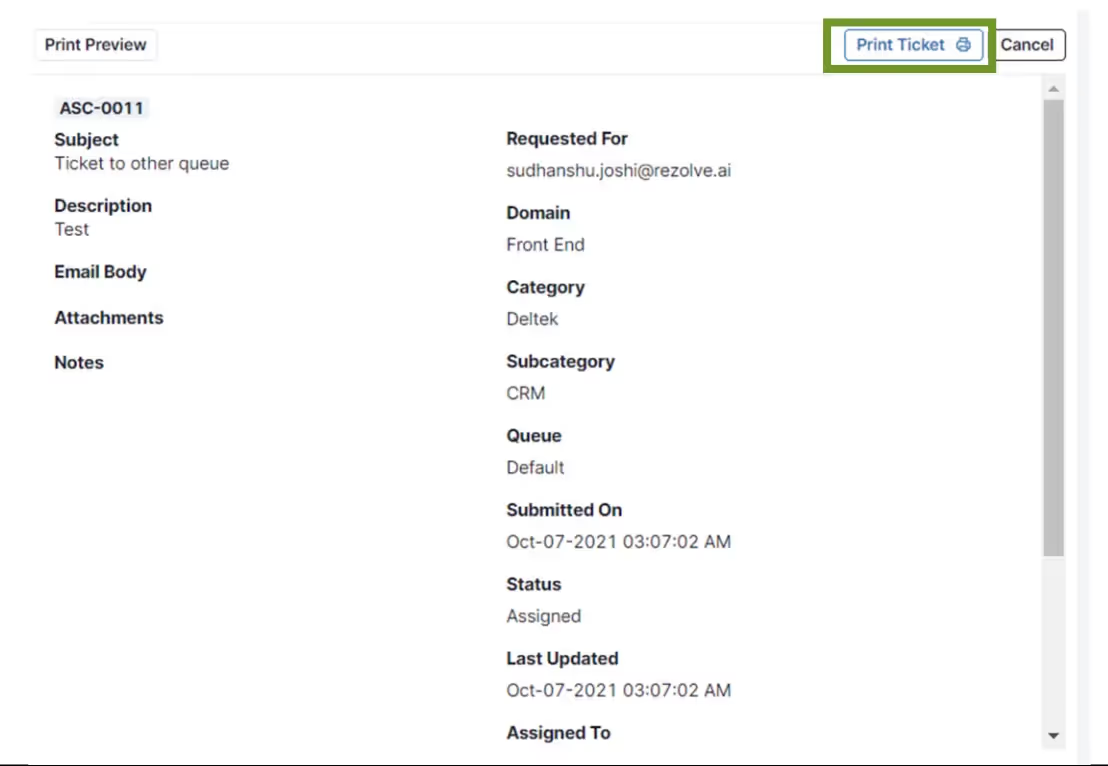
4. The Ticketing Viewing Panel will become a Print Preview screen
5. On the Print Preview screen, click Print Ticket
Thank you! Your submission has been received!
Oops! Something went wrong while submitting the form.