Act 2 · Assist the ones that reach a human: Your agents stop doing the digging.
Seven intelligences on every ticket (analysis, sentiment, ranked next actions, drafted replies, a copilot, guided troubleshooting and institutional memory), with the same glass-box governance underneath.
Agent Assist · 1 of 7 · interactive: Every ticket arrives pre-analyzed.
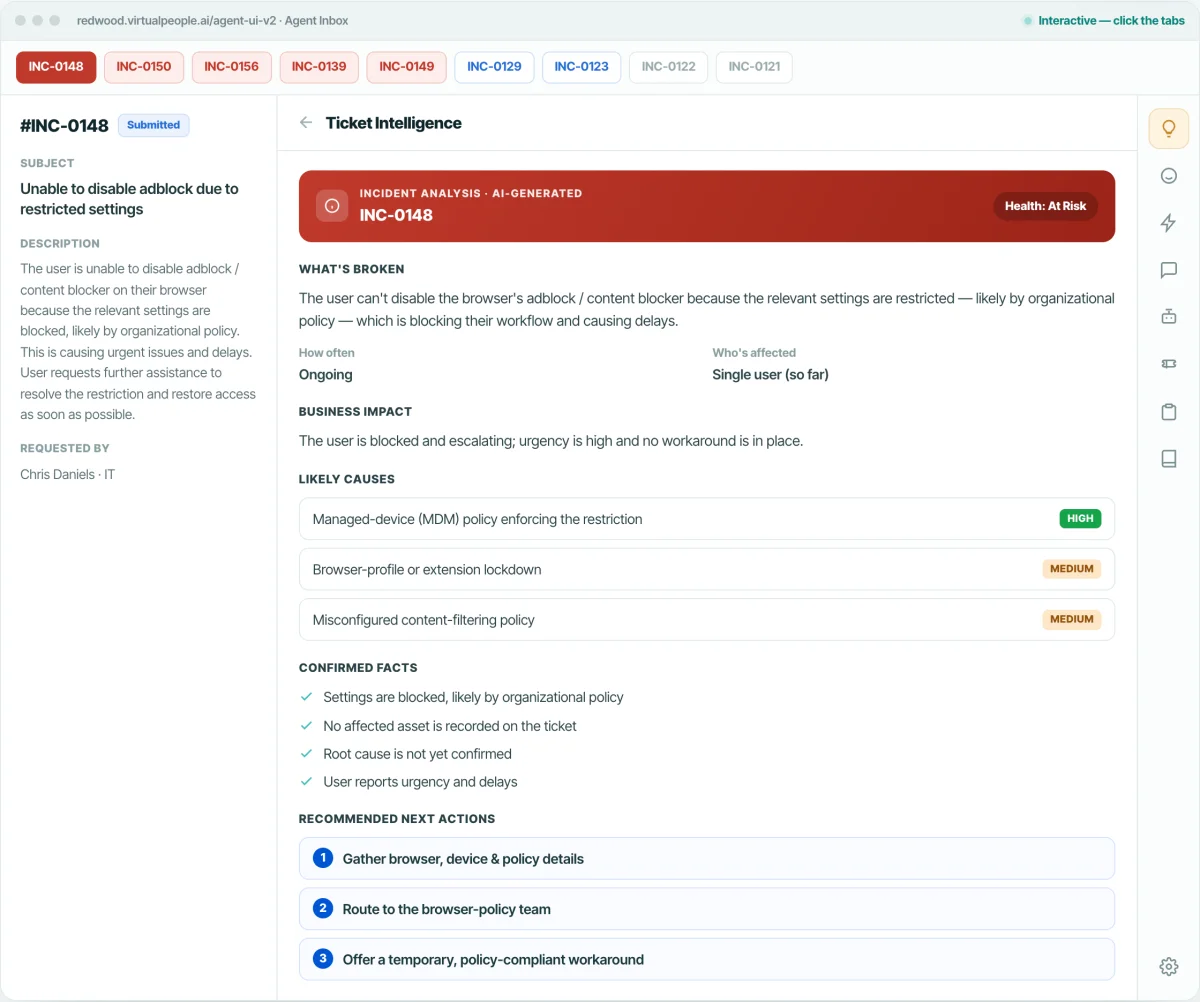
Before an agent reads a word, Assist has already worked the ticket: what’s broken, who’s affected, business impact, likely causes ranked by probability, the confirmed facts, and the recommended next actions, so the agent opens it already oriented and starts resolving in seconds, not after minutes of digging. Click through three very different tickets, same rigor every time.
Agent Assist · 2 of 7 · interactive: It reads the person, not just the problem.
Overall sentiment with a confidence score, and an emotion map that quotes the exact lines that triggered it. Urgency and frustration get defused before they become escalations: CSAT protected, and your managers stay out of it; calm tickets don’t get over-handled.
Agent Assist · 3 of 7 · interactive: What to do next: ranked, with receipts.
Recommended actions ordered by confidence, each grounded in the facts of this specific ticket. Expand one to see the reasoning and the evidence it’s built on, so a newer agent can act with the confidence of your most experienced one, and ramps far faster.
The ticket indicates the browser settings are blocked by organizational policy, but there’s no device, browser, or policy detail to identify the controlling restriction. The next step is to gather the minimum diagnostics needed to route or resolve it.
- settings blocked by organizational policy
- no specific affected device information
- root cause not yet confirmed
If the device is managed, hand off to the team that owns browser / MDM policy to review the rule that controls content blockers.
Where business-justified, request a time-boxed exception through the approval workflow with a named approver.
Suggest an interim, policy-compliant option (for example an approved profile) while the root cause is confirmed.
Three users on the same floor losing the tunnel on a ~30-minute cadence points at the wireless path, not the client. Pull the AP controller logs for the floor and line the roam events up against the drop timestamps.
- drops on office Wi-Fi only
- same floor, three users
- wired connections stable
Clients below 5.4 renegotiate instead of resuming the session after a roam. Confirm all three affected laptops are on the current baseline before touching network config.
A single-variable test: if the drops stop on 5 GHz, the 2.4 GHz roaming behavior is the culprit and the fix is an access-point setting, not a client one.
If the logs confirm roam-triggered drops, hand off with the correlated timestamps attached, the network team starts at the cause instead of re-diagnosing the symptom.
Pay data is sensitive, so confirm you’re speaking with the employee and pin down exactly which pay period is short before touching any records.
- employee reports ~8 approved OT hours
- pay issued on the last scheduled date
- affected period not yet confirmed
Compare the approved hours in the time system against what was actually paid in the run to confirm whether OT was dropped, and check if other employees in the same batch are affected.
If the shortfall is confirmed, submit an off-cycle correction through the payroll approval workflow with a named approver, and give the employee a clear pay date.
If the OT was approved after the cutoff, explain when it will appear and offset the wait with a clear timeline, only after confirming that’s genuinely the cause.
The multi-document PDF from this sender is already on the record: split it, classify INV-2381 as an invoice and route it to the AP queue so payment can start today.
- invoice not in the AP queue
- bundled PDF logged 45 days ago
- statement from the same sender was processed
Reply confirming the invoice has been located and routed for payment, with an expected payment date. It defuses the shipment threat while the payment runs.
Review the supplier contract for late-payment penalties at 45 days, and flag finance leadership if a penalty applies so it’s accrued correctly.
This supplier bundles invoices with statements: flag the intake pattern so multi-document PDFs from this sender always split, with each action logged for audit.
Agent Assist · 4 of 7 · interactive: Replies drafted, never auto-sent.
Three ready responses matched to the moment: acknowledge, gather what’s missing, or close the loop, each written in the right tone for the situation. Notice the HR case leads with empathy. The agent reviews, edits, and sends: one review instead of writing from scratch, so real handle time comes off every ticket.
Agent Assist · 5 of 7 · interactive: A copilot inside every ticket.
The same assistant your employees talk to works alongside your agents: answering questions about this ticket, grounded in its full history and your knowledge, so the agent gets the answer without leaving the ticket or pinging a senior colleague. Try the prompts on each ticket.
Agent Assist · 6 of 7 · interactive: A resolution path, not a wall of documentation.
The single best next diagnostic step, alternatives when it doesn’t apply, and Worked / Not Relevant feedback that tunes the guidance for the next agent, so every resolution makes the next one faster, and the desk gets smarter with use.
Agent Assist · 7 of 7 · interactive: Your desk’s memory, attached to every ticket.
How this exact problem was solved before, scored matches with their actual resolutions, plus the knowledge articles that apply. The answer was found once already, so the agent reuses it instead of rebuilding it. Nobody re-solves a solved problem.
Illustrative matches for the demo.
Illustrative matches for the demo.
Illustrative matches for the demo.
Illustrative matches for the demo.
Agent Assist · all seven together · interactive: The full workspace, every intelligence on one screen.
This is the Agent Assist workspace from the product, rebuilt so you can click through it. Open any panel on a live incident (sentiment, next best actions, drafted replies, guided troubleshooting, similar tickets and the knowledge behind them), everything the agent needs to resolve it, on one screen, no swivel-chair between tools.
The ticket indicates the browser settings are blocked by organizational policy, but there’s no device, browser, or policy detail to identify the controlling restriction. The next step is to gather the minimum diagnostics needed to route or resolve it.
- settings blocked by organizational policy
- no specific affected device information
- root cause not yet confirmed
If the device is managed, hand off to the team that owns browser / MDM policy to review the rule that controls content blockers.
Where business-justified, request a time-boxed exception through the approval workflow with a named approver.
Suggest an interim, policy-compliant option (for example an approved profile) while the root cause is confirmed.
Illustrative matches for the demo.
Illustrative articles for the demo.
A faithful, clickable recreation of the Agent Assist workspace: risk-ranked inbox, AI ticket intelligence, and every assist panel.
Pay data is sensitive, so confirm you’re speaking with the employee and pin down exactly which pay period is short before touching any records.
- employee reports ~8 approved OT hours
- pay issued on the last scheduled date
- affected period not yet confirmed
Compare the approved hours in the time system against what was actually paid in the run to confirm whether OT was dropped, and check if other employees in the same batch are affected.
If the shortfall is confirmed, submit an off-cycle correction through the payroll approval workflow with a named approver, and give the employee a clear pay date.
If the OT was approved after the cutoff, explain when it will appear and offset the wait with a clear timeline, only after confirming that’s genuinely the cause.
Illustrative matches for the demo.
Illustrative articles for the demo.
The same Agent Assist workspace, on a sensitive HR case. Sentiment leads, every action is grounded, and the drafted replies are written for a human to send.
The multi-document PDF from this sender is already on the record: split it, classify INV-2381 as an invoice and route it to the AP queue so payment can start today.
- invoice not in the AP queue
- bundled PDF logged 45 days ago
- statement from the same sender was processed
Reply confirming the invoice has been located and routed for payment, with an expected payment date. It defuses the shipment threat while the payment runs.
Review the supplier contract for late-payment penalties at 45 days, and flag finance leadership if a penalty applies so it’s accrued correctly.
This supplier bundles invoices with statements: add an intake rule so multi-document PDFs from this sender always split, with each action logged for audit.
Illustrative matches for the demo.
Illustrative articles for the demo.
The same Agent Assist workspace, on an escalating supplier case. The intake trail leads, every action carries its confidence score, and the drafted reply waits for a human to send.
Ready when you are: Start resolving tickets autonomously.
Trusted from JLL’s ~100,000-employee Ask Ethics rollout to TotalEnergies Denmark, Gesa Credit Union and Black Angus Steakhouse, and rated 4.8/5 on G2. See the same platform run your own IT, HR or Finance scenarios end-to-end: autonomous, governed, and fully explainable.
Bring twelve months of ticket history to the demo. DeskIQ ranks your top five automation opportunities on your own queue, with the projected hours next to each — you leave with the roadmap, not a slide about one.